 Coherence Audio
Export
This chapter explains how to get your recorded audio out of Coherence Audio and into your post-production tools. It covers the Audacity LOF export feature and how to work with the exported files.
How Coherence Audio Stores Audio
Coherence Audio does not write .wav files directly during recording. Audio is captured in a proprietary raw format inside the project’s workspace, and then embedded into the .coh project file when you save.
To get usable .wav files, you need to export them. The primary export path is the Audacity LOF export.
Audacity LOF Export
The Audacity LOF (List of Files) export gives you a one-step way to export your entire multi-track session as .wav files.
What Is an LOF File?
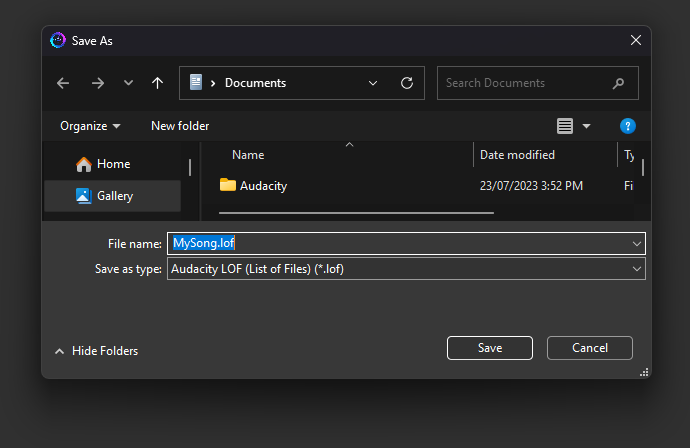
A .lof file is a simple plain-text file. It contains a list of audio file paths, each paired with an offset that tells Audacity where on the timeline that file should begin. Because it is plain text, you can open and read it in any text editor.
Most importantly: the LOF export writes all your audio as standard PCM .wav files into a folder you choose. You do not need to use Audacity at all — the .wav files are ordinary audio files that open in any DAW, audio editor, or media player.
A typical .lof file looks like this:
file "C:\Recordings\MySession\Track1.wav" offset 0.000
file "C:\Recordings\MySession\Track2.wav" offset 0.000
file "C:\Recordings\MySession\Track3.wav" offset 0.000
After editing — or after drift correction repositions clips — the offsets in the LOF file reflect each track’s actual position on the timeline.
Why Use LOF Export?
The .lof format is the fastest way to open an entire multi-track session in Audacity without manually importing and positioning each track. If your workflow does not involve Audacity, you can simply use the exported .wav files directly with any other tool.
When LOF Export Is Most Valuable
LOF export is most powerful when combined with drift correction (Pro). After correction:
- Each track has been resampled to the master clock’s timeline.
- The LOF offsets reflect the corrected positions.
- Opening the LOF in Audacity (or importing the individual
.wavfiles into any DAW) gives you perfectly aligned stems, ready for mixing.
Without drift correction, the LOF file still works — it will export all your tracks at their recorded start positions — but any clock drift between devices will be present in the exported tracks.
Performing an Audacity LOF Export
- Complete your recording session (and optionally apply drift correction if you have Pro).
- Make any timeline edits you need in Coherence Audio.
- Go to File → Export → Audacity LOF.
- Choose a destination folder. Coherence Audio will:
- Write a
.wavfile for each track into the destination folder. - Write a
.loffile in the same folder that references all the exported tracks with their correct time offsets.
- Write a
- Click Export.
Note: The destination folder should have sufficient free space for all exported WAV files. Check Estimating File Sizes for guidance.
Opening the LOF File in Audacity
- Launch Audacity (version 2.x or 3.x — both support the LOF format).
- Go to File → Open (not File → Import — you must use Open to load an LOF file).
- Navigate to your export folder and select the
.loffile. - Click Open.
Audacity will import all the audio files listed in the LOF and place each one on a separate track at the correct time position.
Audacity version note: LOF support is a standard feature in Audacity and has been available for many years. Both the legacy Audacity 2.x series and the current Audacity 3.x series support it. No plugins or additional configuration are required.
Compatibility with Other DAWs
The .wav files exported by Coherence Audio are standard PCM WAV files and will open in any DAW or audio editor that accepts WAV input:
| Application | How to Import |
|---|---|
| Audacity | File → Open (for LOF) or File → Import → Audio (individual WAVs) |
| Reaper | Insert → Media File or drag and drop |
| Adobe Audition | File → Open or drag into the Multitrack view |
| DaVinci Resolve | Import Media into the Media Pool, then place clips in the timeline |
DAW note: If you use a DAW other than Audacity, import the individual
.wavfiles directly. All tracks start at time zero (or at their edited offsets), so positioning them in any DAW timeline is straightforward.